DuoDash runs two apps side by side on your car display, brings apps CarPlay does not normally show onto it, and adds navigation, voice and performance controls around them.
Everything below is in the current release. Anything not listed here is not. Where a feature needs optional hardware, or has a consequence worth knowing about first, it says so in its own section.
DualApps
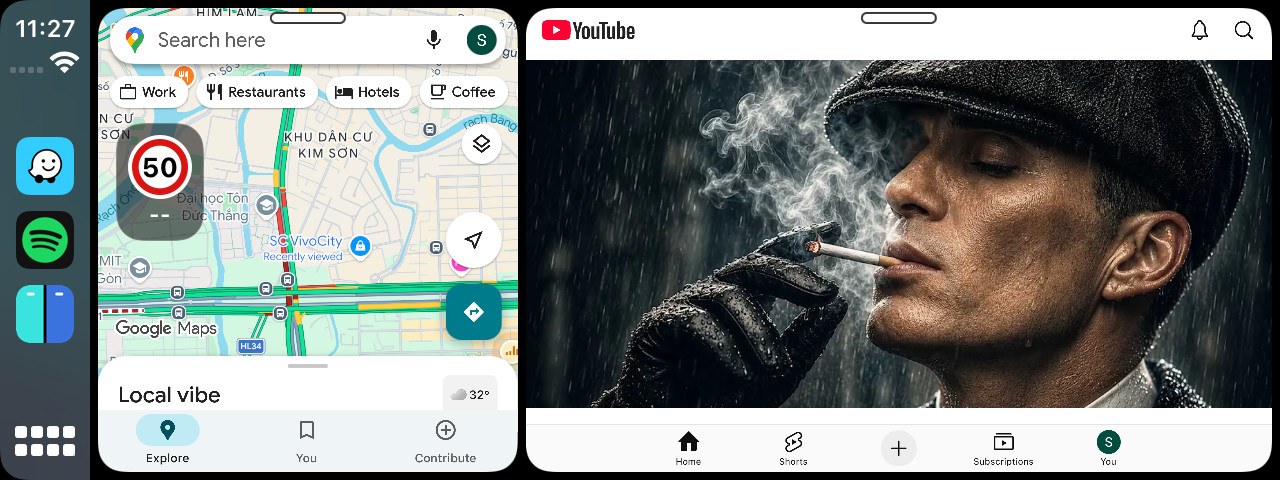
DualApps is the DuoDash screen on the car display. It splits the display into panes and runs a different app in each, so a map can stay where you can see it while you use music, messages or something else beside it.
Tap the DuoDash icon on the CarPlay home screen to open it, or turn on Auto Start and let it open by itself a few seconds after CarPlay connects.
- An empty pane asks you to pick an app. Tap it to open the app picker.
- A pane that is already running an app shows a small light bar at the top center. Press the bar to change that pane. It fades after a few seconds so it does not sit over the app, and comes back when you press the top of the pane or interact with it.
- An app running in one pane is greyed out in the other. The same app cannot be loaded twice.
Screen Layout
Screen Layout sets how many panes the car display is divided into, and where they sit. There are eight arrangements to choose from, and each pane runs an app of its own.
- One pane, filling the whole display.
- Two panes side by side.
- Two panes stacked, one above the other.
- Three panes side by side, as columns.
- A full-height pane with two stacked panes beside it — the tall one on either the left or the right.
- A full-width pane along the top or the bottom, with two panes side by side in the other half.
Every pane runs its own app, so a three-pane layout has three apps drawing on the display at once. That asks more of the phone than two does, and the compatibility page covers what the heavier combinations need.
App Picker
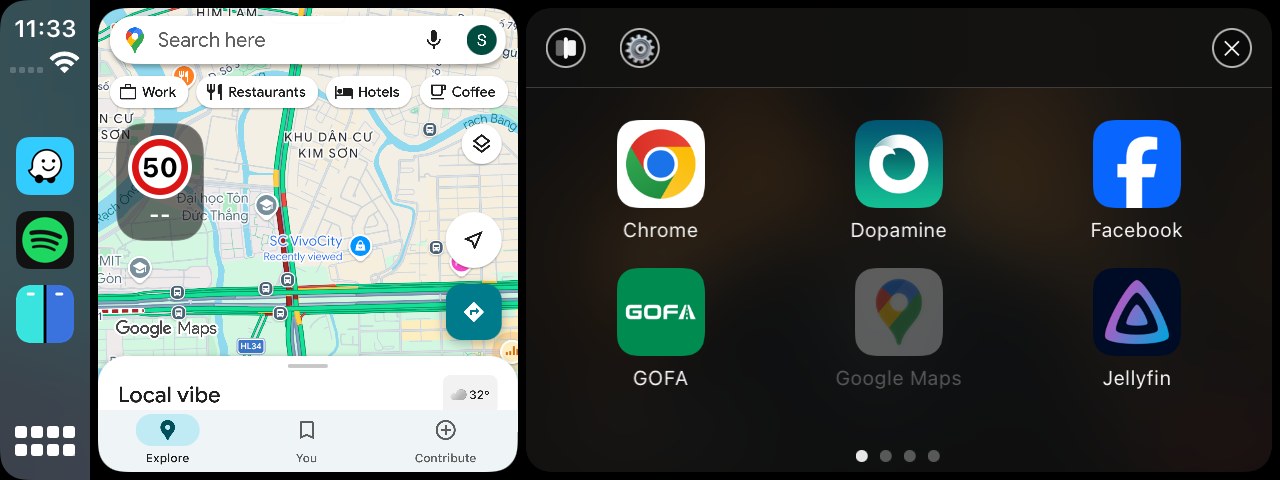
The app picker opens over the pane you are changing. Apps are laid out across as many pages as you need; swipe sideways to move between them, and the dots along the bottom show where you are. Tap an icon to load that app into the pane.
Its top row carries Resize on the left, Settings in the middle, and a close button on the right.
Resize changes how the display is divided between the two panes. Tap Resize, drag the six-dot handle in the middle until the panes are the sizes you want, then tap Apply. Apply appears only once you have actually moved the divider, and closing without applying leaves the layout as it was.
A map or similarly heavy app can take 10–25 seconds to draw its interface the first time it loads into a pane.
App Bridge
App Bridge makes apps that do not normally appear in CarPlay available on the car display. Turn it on, tick the apps you want in the list, and they appear as icons on the car’s home screen.
Apps can be added or removed whenever you like, without restarting DuoDash.
The list is split into My Apps and System Apps, and the in-car app picker shows My Apps. If an app ends up in the wrong group, swipe its row sideways to move it.
Navigation Bubble
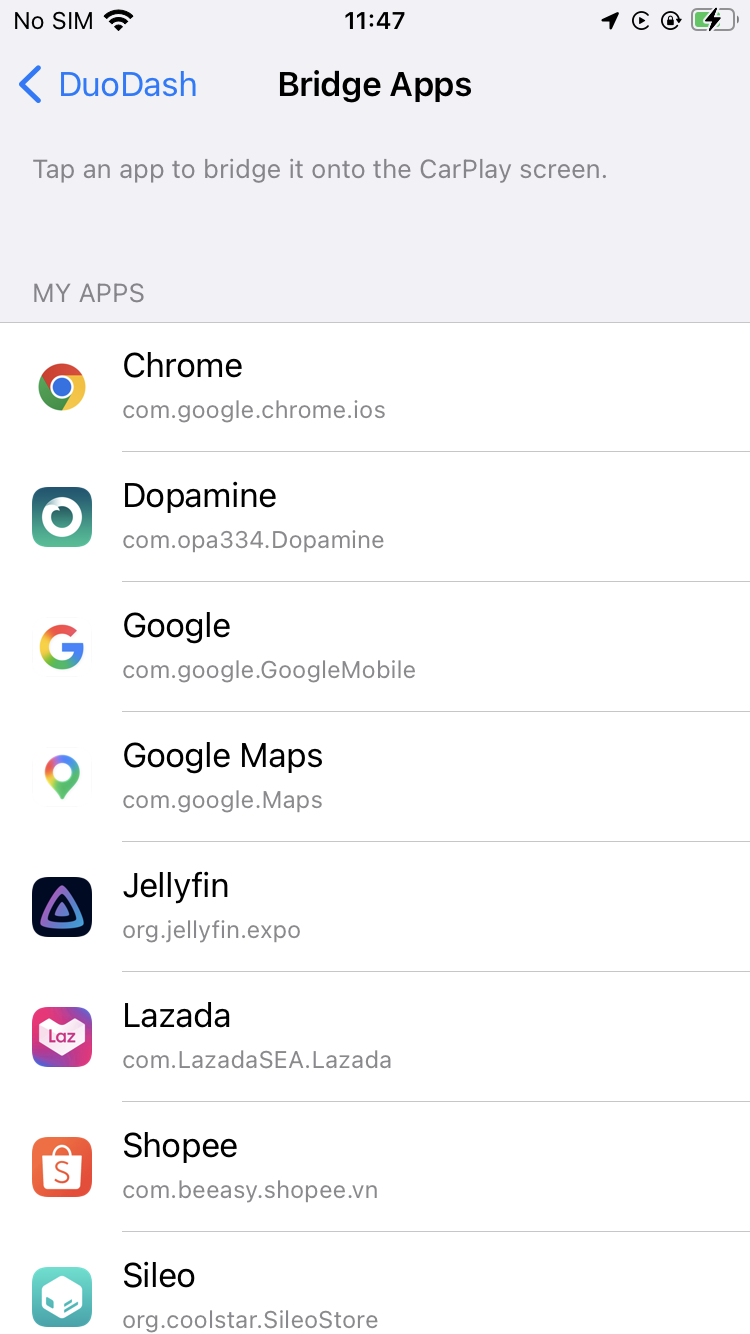
The navigation bubble puts speed-limit information and speed-camera warnings on the car display, taken from the navigation app you nominate.
Choose the navigation app, choose which of the two panes the bubble appears over, and optionally have it flash and beep when you go over the limit it is showing.
The bubble reads from the nominated app while that app is running in one of the two panes. If the app is only open on the iPhone, iOS suspends it after a while and the bubble stays empty. Keep provider awake, on the Navigation Bubble screen, asks the app to hold itself awake in the background — it costs battery, which is why it is off by default, and it only works if the nominated app supports it.
Voice Command
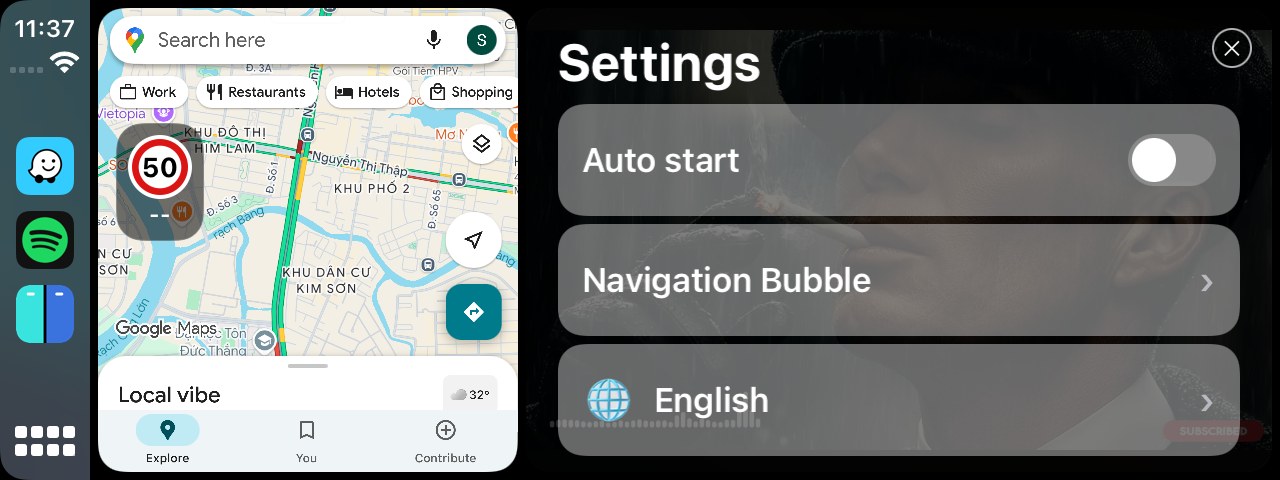
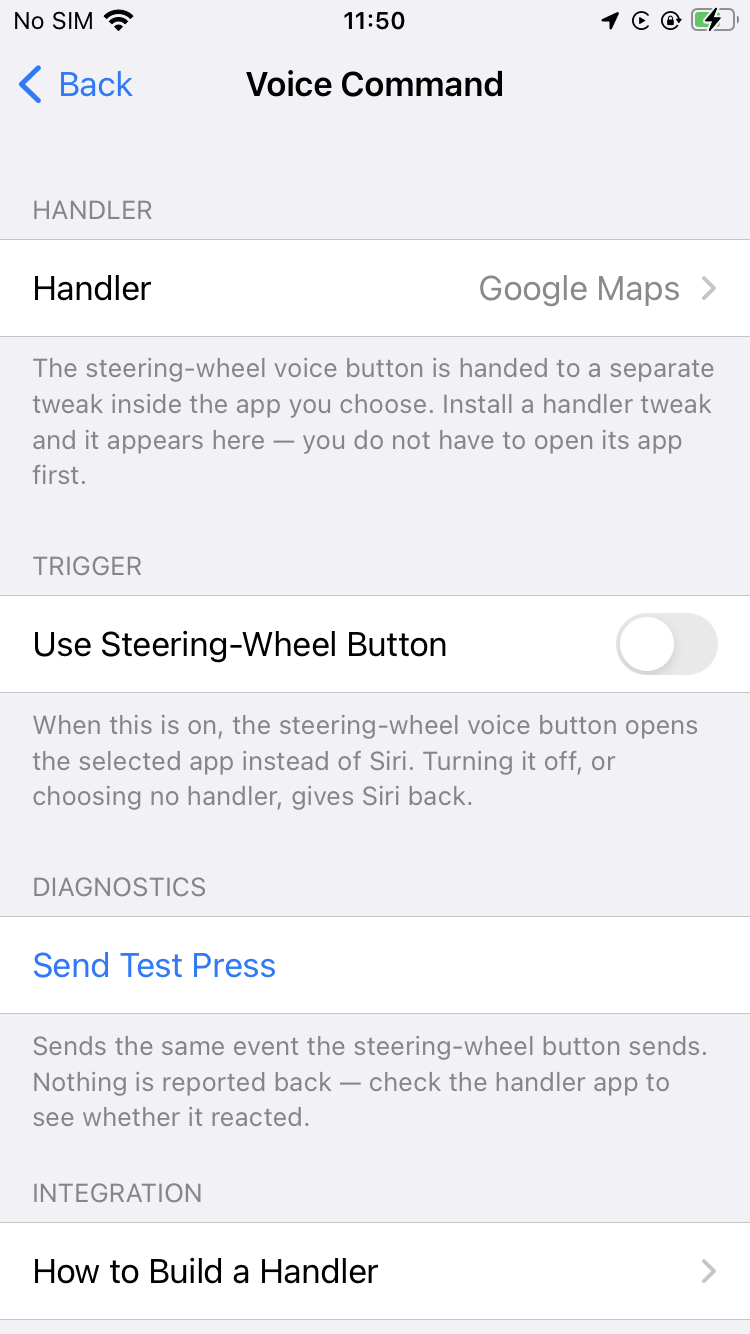
Voice Command changes what the steering-wheel voice button does. Point it at an app and the button opens that app’s voice search instead of Siri. Leave no app selected and the button keeps working with Siri as usual.
HUD Device
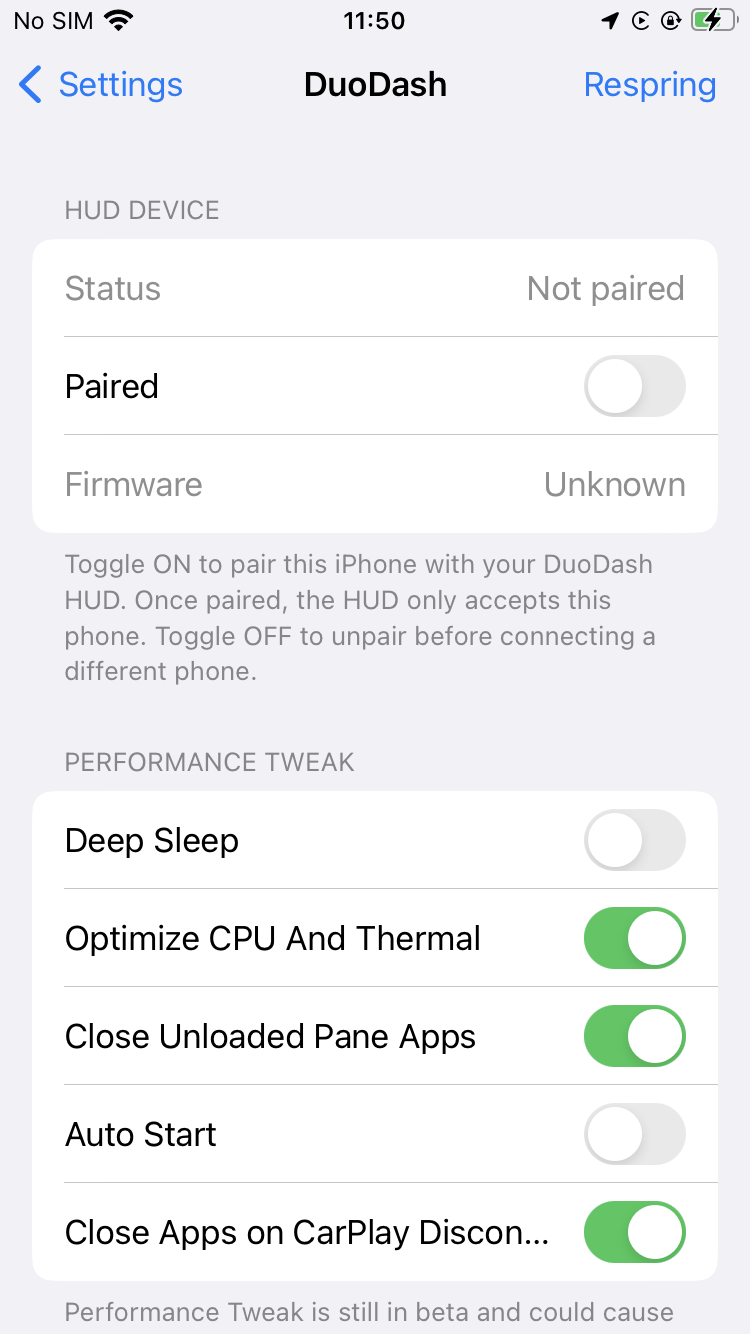
DuoDash pairs with the DuoDash HUD, an optional heads-up display mounted near the windscreen. It normally powers on with the vehicle; pairing is a switch in DuoDash’s settings, and the settings screen shows the connection state and the firmware version running on the HUD.
Pairing binds the HUD to one phone: once paired it accepts that phone rather than connecting to whichever phone happens to be nearby.
To move it to another phone, unpair it on the current phone first. If that phone is no longer available, holding the HUD’s BOOT button for about three seconds makes it forget its paired phones and restart.
The HUD is separate hardware. Everything else on this page works without it.
Performance Tweak
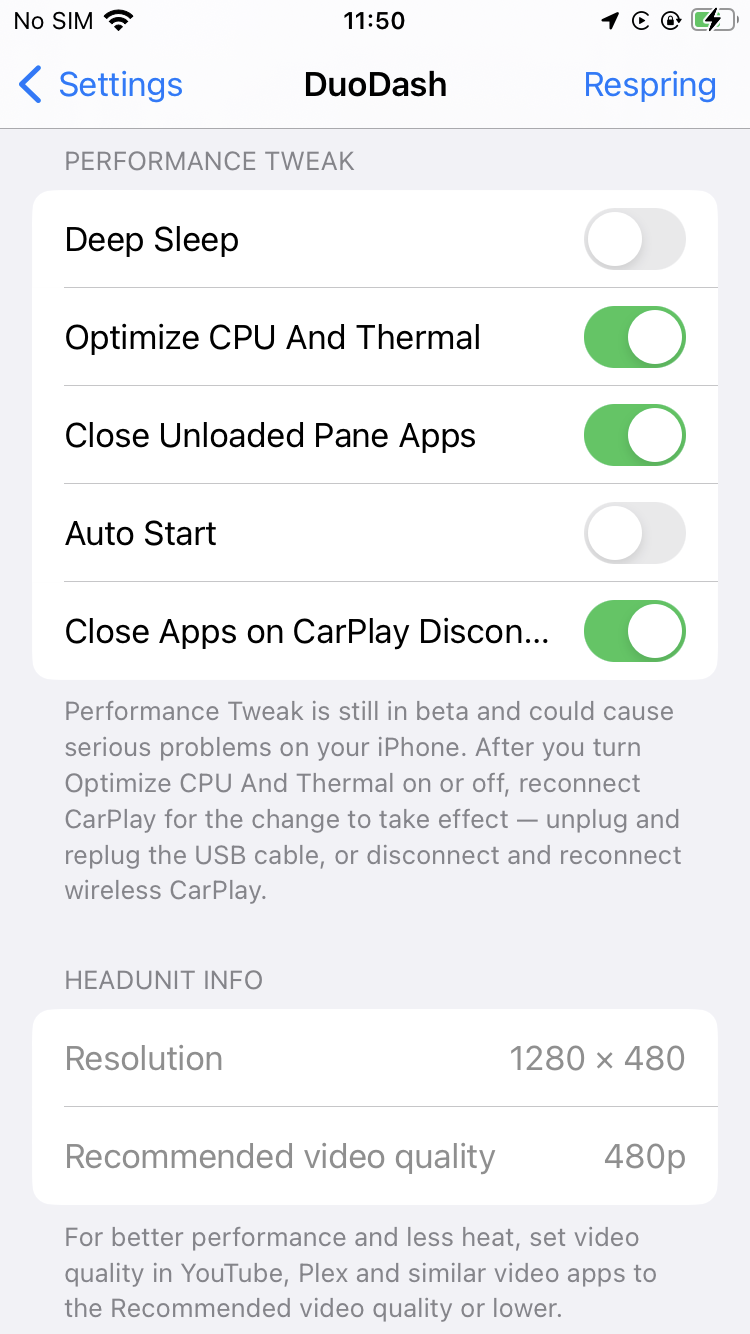
Five optional switches cover battery, heat, memory and what happens when CarPlay connects and disconnects. All five are off after installation, DuoDash marks the section beta, and each one can be turned back off on its own if it does not suit your setup.
- Deep Sleep — when the vehicle is switched off and the iPhone stops receiving power, apps are paused and Wi-Fi, Bluetooth and Location are turned off; when power comes back, DuoDash brings the environment back with it. Written for a phone that lives in the vehicle, and covered on its own below.
- Optimize CPU And Thermal — lets a less powerful iPhone run DuoDash without generating too much heat.
- Close Unloaded Pane Apps — when you swap an app out of a pane, the app it replaced is closed instead of being left running in the background, which frees memory for what is actually on screen.
- Auto Start — opens DualApps a few seconds after CarPlay connects, so you do not have to tap the icon each time you get in.
- Close Apps on CarPlay Disconnect — closes the apps that were running on the car display about 12 seconds after CarPlay disconnects. The delay is there so a brief dropout does not close everything.
One consequence is worth understanding before you turn any of these on: anything that closes an app also stops audio that app was playing, and closed apps do not reopen on their own.
Optimize CPU And Thermal restarts the iPhone Home Screen, which takes about 15 seconds, and it does not take effect until CarPlay has been reconnected — unplug and replug the cable, or disconnect and reconnect wireless CarPlay.
Deep Sleep
Deep Sleep is written for one particular setup: an iPhone that lives in the vehicle. A common DuoDash installation uses an older or inexpensive iPhone as a dedicated CarPlay device, wired to vehicle power and left behind the dashboard, in the glove compartment, in the centre console or somewhere else out of sight.
A phone parked in a car is not idle. With the screen off, iOS carries on running background apps, network activity, Bluetooth and wireless services, location services and system daemons, alongside DuoDash’s own components and whatever else you have installed — and on a phone that never leaves the car, that background draw alone is enough to flatten the battery in a surprisingly short time.
A flat battery means the phone shuts down, and on many jailbreaks a shutdown means the jailbreak environment has to be restored by hand before DuoDash will run again. That is an annoyance on a phone in your pocket and a real problem on one behind a dashboard panel.
So Deep Sleep follows the vehicle’s power state instead:
- Vehicle on. Power returns, the phone wakes, and DuoDash restores the environment it needs — its own services, the apps and integrations you have configured, the CarPlay components, App Bridge and the background processes behind them — so the car display comes up without you having to get at the phone.
- Vehicle off. The power source disappears and DuoDash begins winding the phone down, suspending or closing the apps, services and background activity it does not need, until the phone is drawing about as little as it practically can while still being switched on.
Deep Sleep is not a shutdown, and that is the whole point. It does not power the iPhone off and does not reboot it, because on many setups a reboot is exactly what costs you the jailbreak. It keeps the system running and takes the work away instead.
How long a parked phone lasts
With a battery in good health and a sensible configuration, Deep Sleep is intended to let a dedicated phone sit in a parked vehicle for something in the region of 10 days to two weeks without going flat.
Treat that as the target the feature is built around rather than a figure to plan a trip by. Real standby time moves with the iPhone model, the battery’s health and capacity, the iOS version, the jailbreak, the tweaks installed, cellular signal, the wireless configuration, background services, temperature, how DuoDash itself is configured, and anything else running on the phone.
Deep Sleep reduces battery drain; it cannot eliminate it, and no setting makes up for a worn-out battery. An older phone whose battery is tired will manage considerably less than the range above.
Before the phone goes somewhere you cannot reach
A permanent installation is worth testing while the phone is still in your hand.
- Check the battery is in reasonable condition. How long the phone survives while parked depends on that more than on anything DuoDash does.
- Give it a reliable switched power source — one that is live while the vehicle is running and genuinely goes away when it is off, because that is the signal Deep Sleep follows.
- Make sure the charging arrangement is suitable for being left in place permanently.
- Keep the phone out of anywhere that gets excessively hot.
- Run several complete cycles — vehicle on, vehicle off, Deep Sleep, wake — before the phone goes behind a panel.
Do not turn Deep Sleep on for the phone you carry with you. Its power saving is deliberately aggressive: it suspends apps and services a personal phone is expected to keep running, and while the vehicle is parked Wi-Fi, Bluetooth and Location stay off — so a Bluetooth accessory or a personal hotspot will not be there when you want it.
Headunit Info
DuoDash reports the resolution of the connected car display and the video quality it recommends for that resolution — for example 1280 × 480 and 480p.
Playing video far above what the head unit can show gives the iPhone more to process without anything more to see, and that costs heat and battery. Setting video apps to the recommended quality, or below it, avoids the waste.
These values fill in after the iPhone has connected to the vehicle once. Until then they read Unknown.
Splash Screen
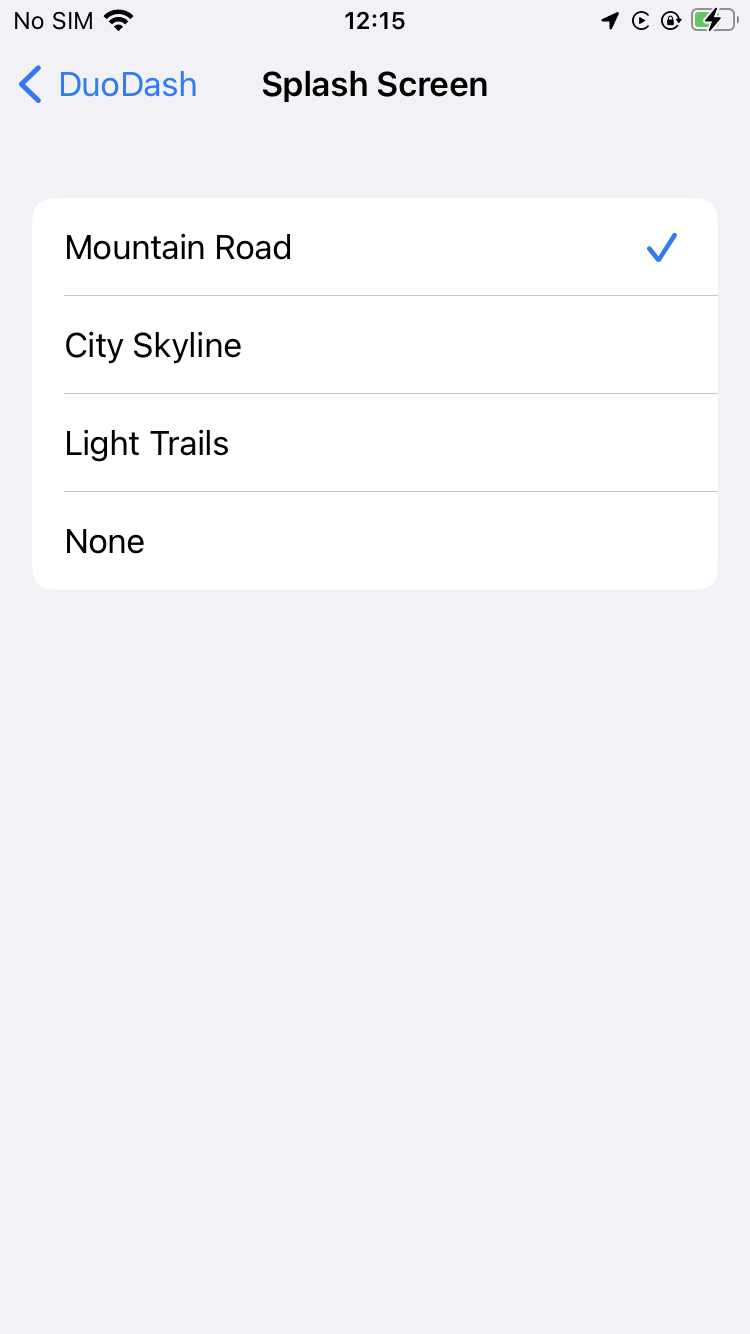
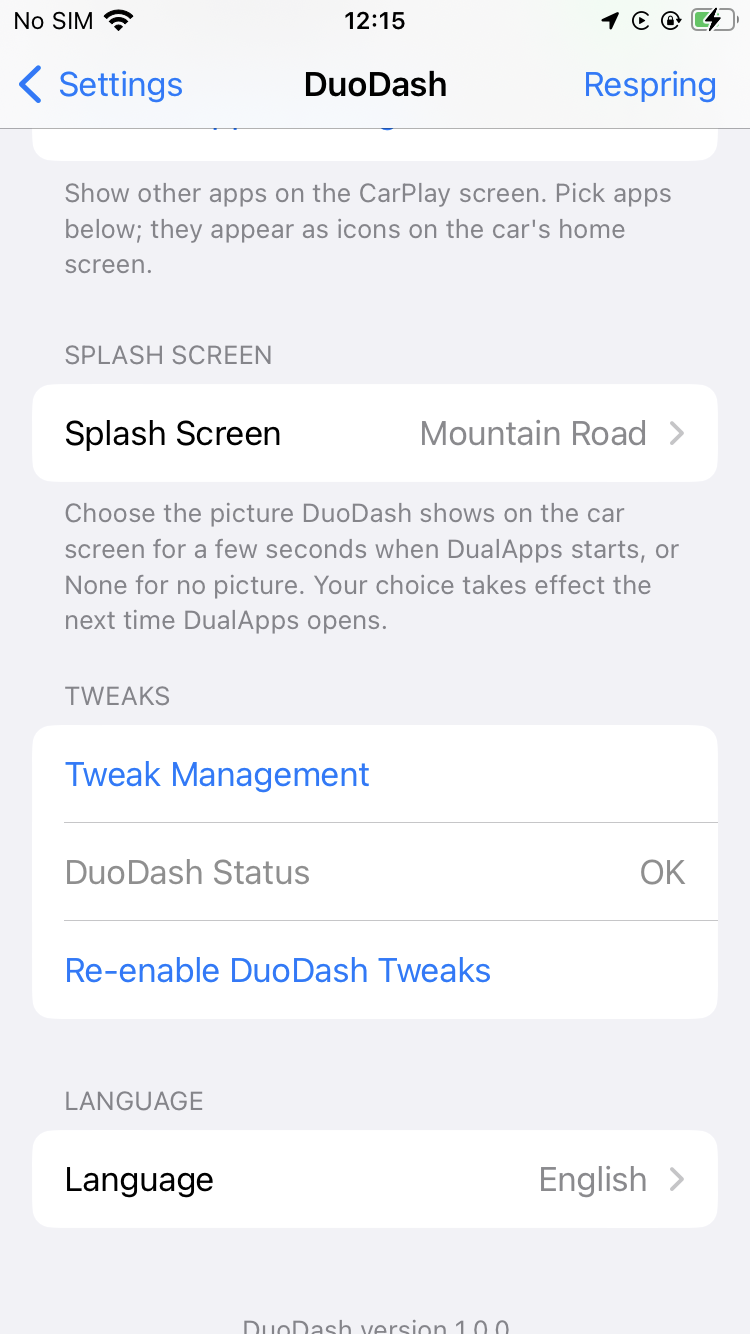
DualApps shows a splash image on the car display for a few seconds while it starts. Three designs ship with DuoDash — Mountain Road, City Skyline and Light Trails — and the one you pick appears the next time DualApps starts. None is the fourth choice, for no splash image at all.
Language
DuoDash is translated into 17 languages. The language is chosen in DuoDash’s own settings and applies immediately to both the settings screens and the car display. It does not change the iPhone’s system language.
Tweak Management
Tweak Management is how DuoDash is extended. Rather than every developer implementing communication with the vehicle, the CarPlay environment and the dashboard UI over again, DuoDash provides those as reusable Core Tweaks, and a third-party tweak integrates with them instead.
A tweak registers itself with DuoDash — its name, developer, version, the app it targets, the Core Tweaks it supports and the capabilities it needs — and DuoDash lists it under Tweak Management in its settings, alongside the status of its own tweaks.
From the Tweak Management screen you can see which compatible modules are installed, turn them on and off, configure what they support, and check each one’s information and status.
Extension modules are separate packages
This is the part worth understanding before you go looking for a feature. An extension module is its own package, installed separately from DuoDash. Installing DuoDash does not install every module the screen is capable of managing, and seeing something listed there does not mean it is on your phone.
Each module has its own implementation and its own requirements, and is installed, configured, updated and removed independently of the DuoDash core. That is deliberate: it keeps DuoDash itself from being tied to every optional feature, and lets a module change without waiting for a DuoDash release.
So there are two different things here. DuoDash core is app bridging, CarPlay integration, the interface, and the extension interfaces themselves. Extension modules are separately installed packages that use those interfaces. An option existing in Tweak Management does not mean the module behind it is included with DuoDash.
What DuoDash provides, and what a module provides
DuoDash supplies the interface and the place to show the result. It does not need to know how any particular navigation app, voice service or data source works internally — a module handles that part and hands over information in a form DuoDash understands.
Application / System ──► Extension Module ──► DuoDash Interface ──► CarPlayA navigation module is the clearest example. It reads navigation information out of a supported navigation app, converts it into DuoDash’s format, and feeds it to the navigation interface, which is what puts it on the car display:
Navigation App ──► Navigation Module ──► DuoDash Navigation Interface ──► Navigation BubbleVoice Command works the same way: DuoDash provides the interface that receives vehicle and CarPlay events, and a compatible module connects those events to a particular app or service. Because the module is separate, that behaviour can evolve without changing DuoDash itself — and different navigation apps can each have their own module rather than DuoDash carrying app-specific code for every one of them.
Both extension contracts are published and documented, so anyone can build a module for an app DuoDash does not cover. That does not change the paragraph above: each module is still its own package, and a row on this screen is not a module on your phone.
Status and crash reports
DuoDash reports on itself. Its status is normally OK; if it has hit repeated problems it disables its own tweaks to keep the phone stable, and Re-enable DuoDash Tweaks turns them back on. Doing that restarts the iPhone Home Screen for about 15 seconds.
The crash reporter collects diagnostic information when DuoDash misbehaves. Generating a report can take up to a minute.
In the current release the report is saved on the phone rather than sent anywhere — the reporting server is not in place yet.
Set DuoDash up while the vehicle is parked. Do not interact with video, settings or anything else distracting while driving, and follow the traffic laws where you are.
Check which iPhones, jailbreaks and head units are supported
Ready to upgrade your CarPlay experience?
DuoDash is distributed through Chariz. Check that your iPhone, jailbreak and head unit are supported first.